How to Change Trust Wallet Password – Comprehensive Guide

이 페이지에서
Key Takeaways
  • •You can change your Trust Wallet security passcode at any time if you suspect your wallet is compromised.
  • •Changing your PIN doesn’t affect your funds or secret recovery phrase.
  • •You’ll need your Secret Recovery Phrase to change Trust Wallet password in the browser extension, so ensure it’s backed up.

You can open your Trust Wallet to make a quick trade, and your mind goes completely blank when it’s time to input your password. Or perhaps you’re just worried that someone looked over your shoulder the last time you logged in. Whatever the reason, keeping your Trust Wallet secure is still your responsibility, and updating the passcode every 2 to 3 months is a simple habit that helps. In this guide, we’ll show you how to change Trust Wallet password in both the browser extension and mobile app.

Can You Change Your Trust Wallet Password?

Yes, you can change your password (or passcode) in Trust Wallet at any time through the built-in passcode setting. This edit adds a layer of security without touching your private keys or coins. Trust Wallet uses a local 6-digit passcode/PIN in your mobile app and a password of at least 8 characters in the extension, along with a secret recovery phrase (SRP), for security and recovery.

You cannot edit SRP, but you’ll need it for account recovery and to reset your passcode if you ever forget it entirely. Additionally, since your passcode does not control your wallet’s private keys or blockchain, changing it has no impact on your stored funds. Still, changing your passcode is vital for the local security of your wallet on your device. The next section details how you’ll reset Trust Wallet’s passcode without losing funds.

Steps to Change Your Trust Wallet Passcode

Before you start, ensure you have your secret recovery phrase written down somewhere safe and accessible. You’ll need it if you want to change your Trust Wallet password in a browser extension, as the current version does not let you change a password in the traditional sense; you have to reset the wallet or reinstall the extension.

On the other hand, you may not need it for the mobile Trust Wallet passcode change, but you will need it if you ever get locked out.

Extension

Below are the steps to change your Trust Wallet security PIN on the browser extension:

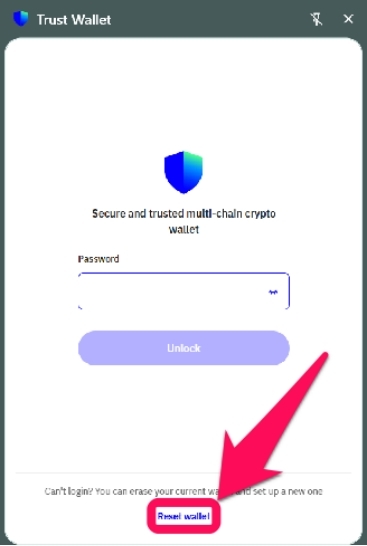
Step 1: Open the Trust Wallet extension on your browser, and click Reset Wallet on the lock page.

Login to Trust Wallet

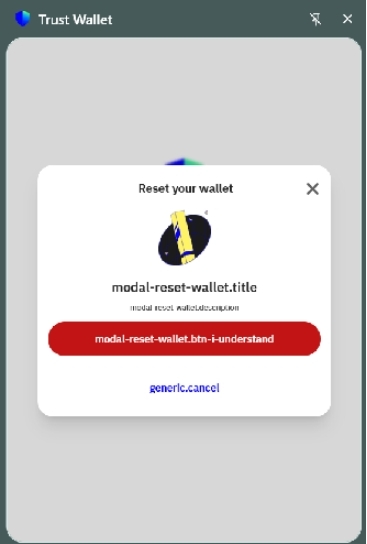
Step 2: Select “I Understand” to proceed with the wallet reset.

Trust Wallet Extension Settings

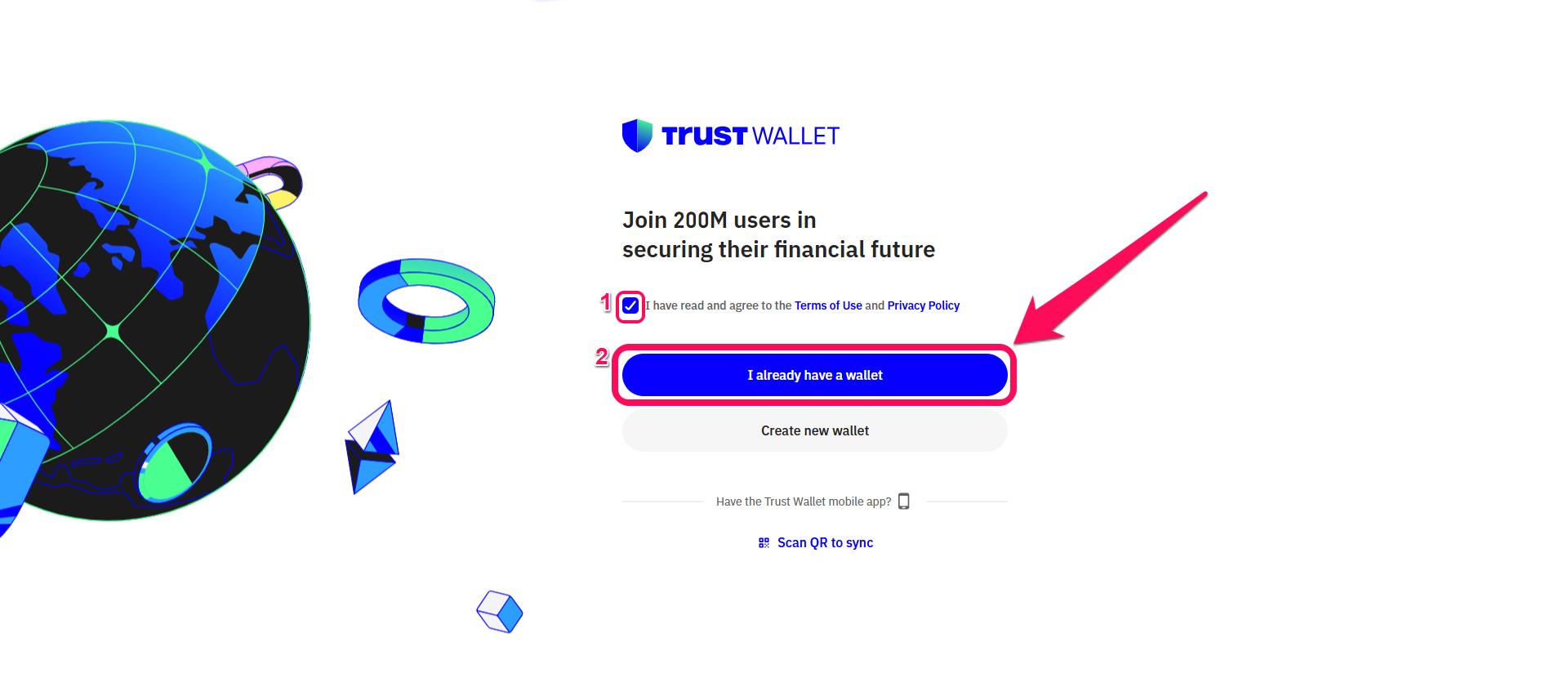
Step 3: On the pop-up page, check the box to agree to the Terms of Use and Privacy Policy. Then click “I already have a wallet” to proceed.

Import Existing Trust Wallet

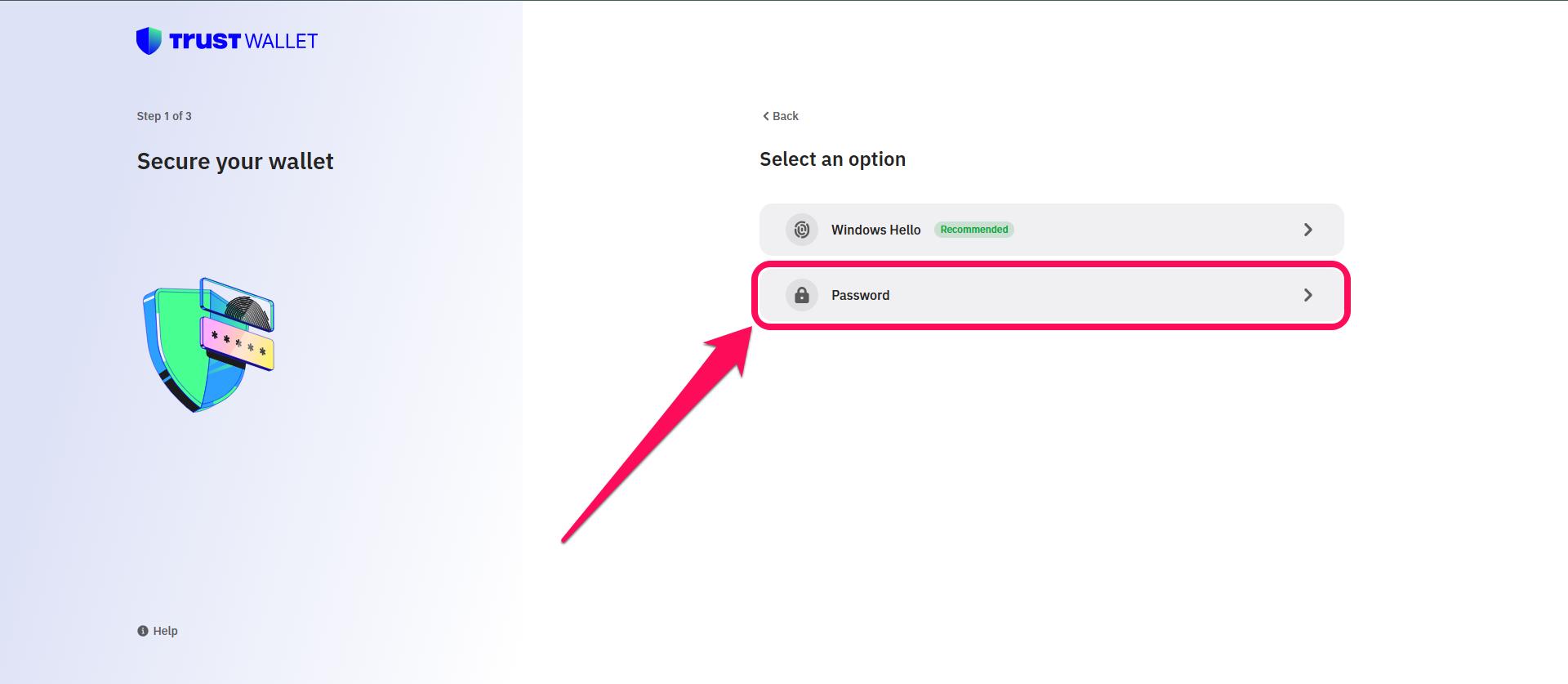
Step 4: Next, select “Password” as your wallet security type to set a new password.

Trust Wallet Security Type

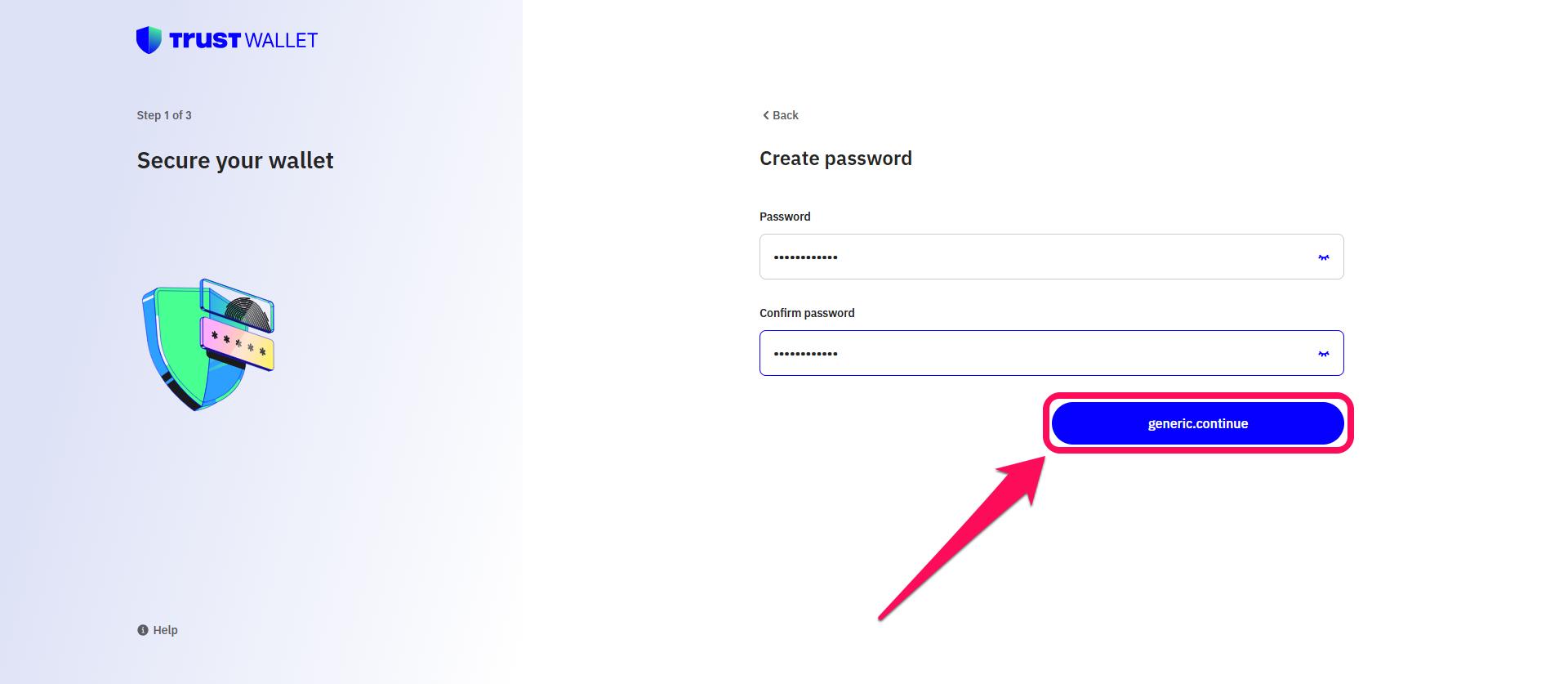
Step 5: Create a new password with at least 8 characters, confirm it, and then click Continue.

Create a New Password

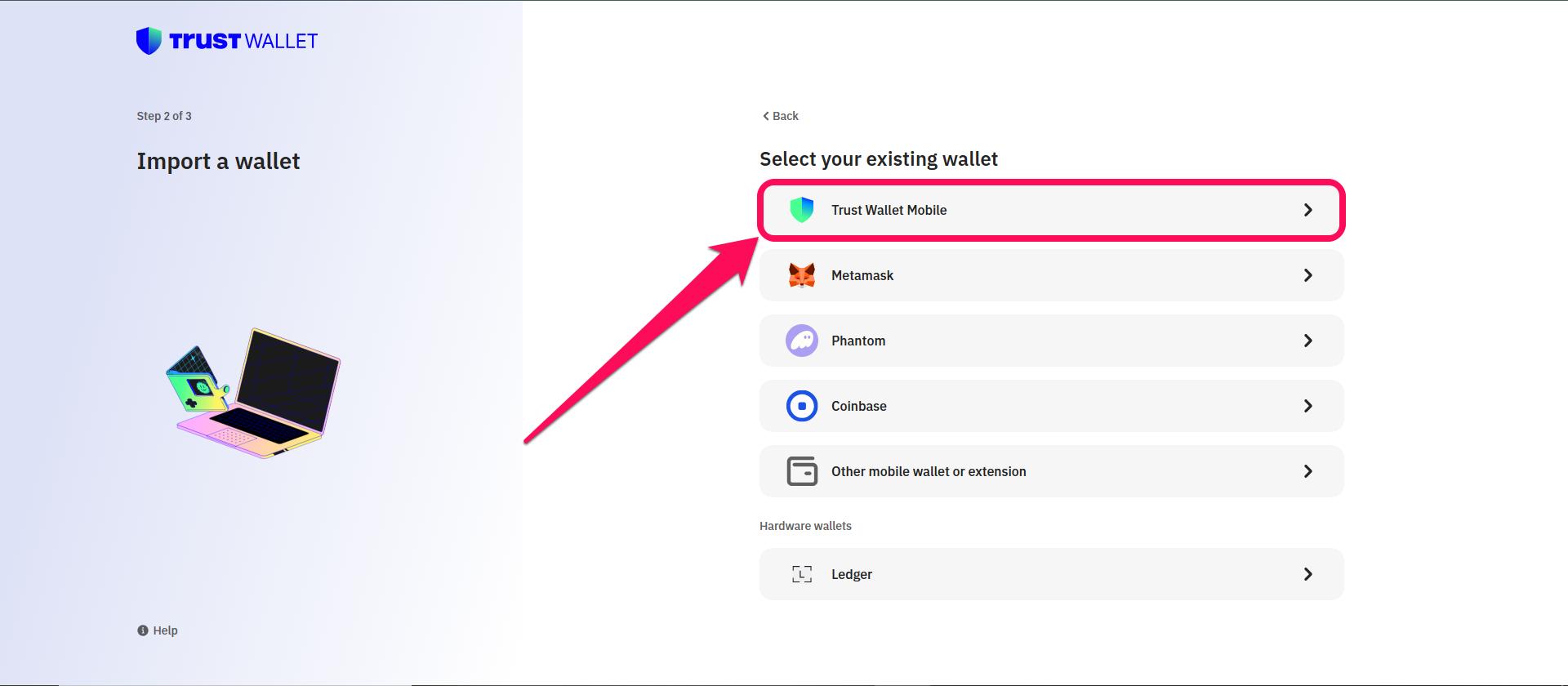
Step 6: Select the wallet you want to import from; in this case, it’s Trust Wallet Mobile.

Select Wallet to Import from

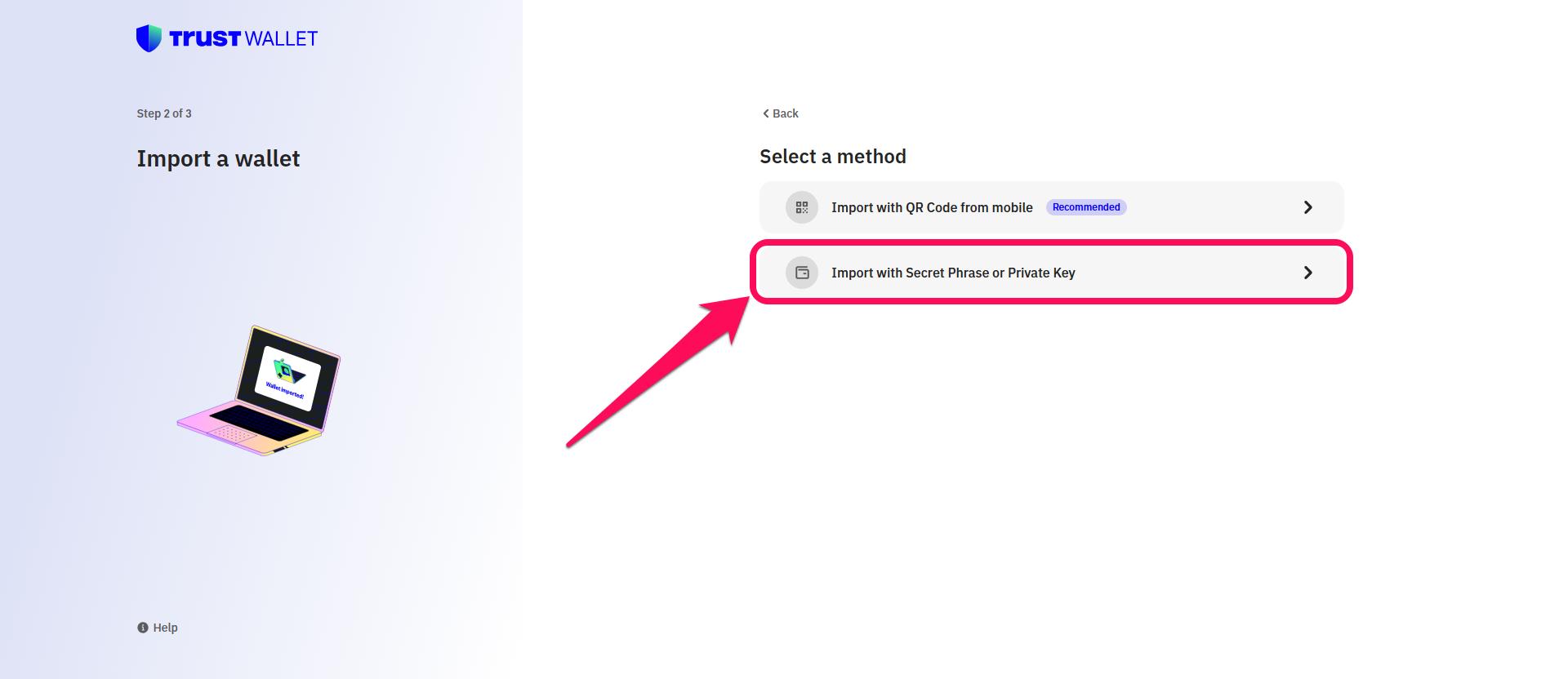
Step 7: Click on “Import with Secret Phrase or Private Key” as the import method.

Select Import Method

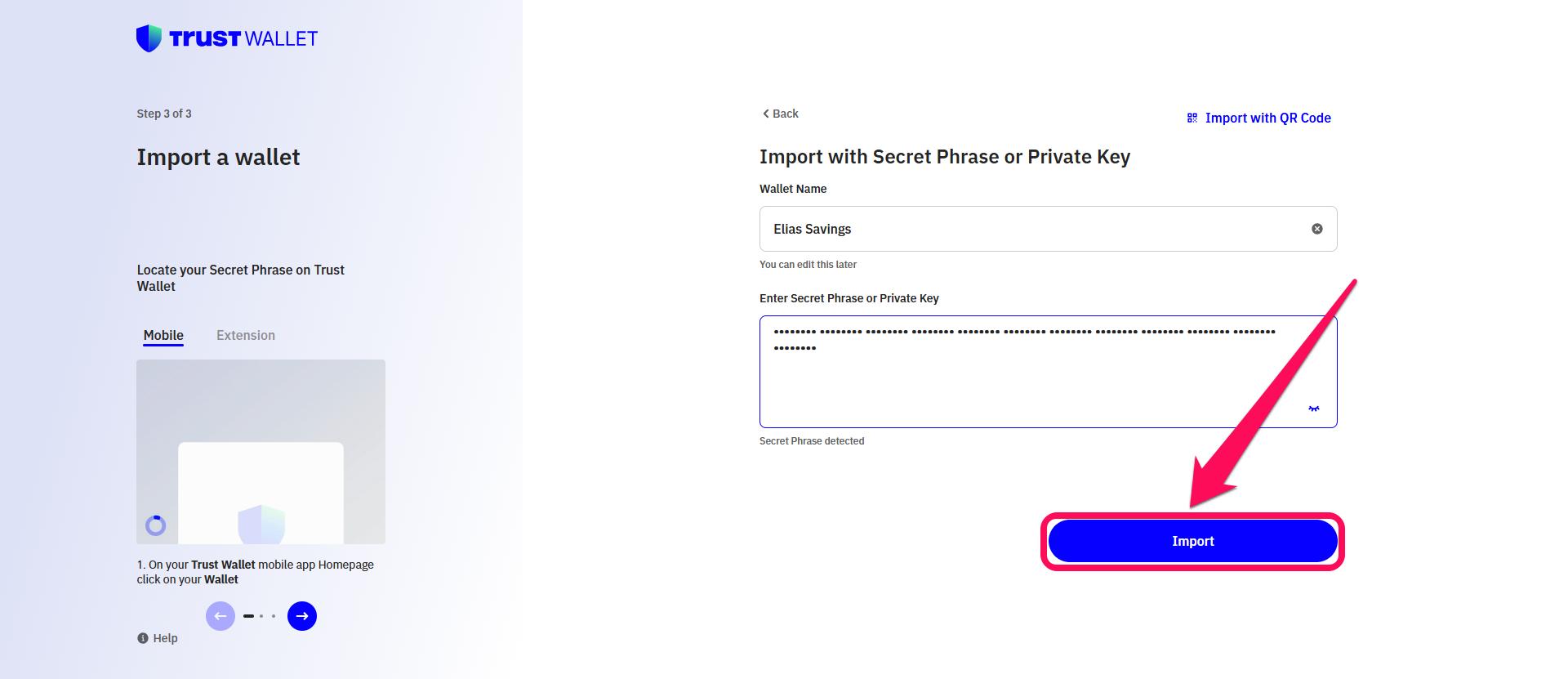
Step 8: On the next page input the wallet name and carefully enter your 12-word secret recovery phrase. Then click Import when it detects the wallet linked to the phrase.

Import Wallet with Phrase

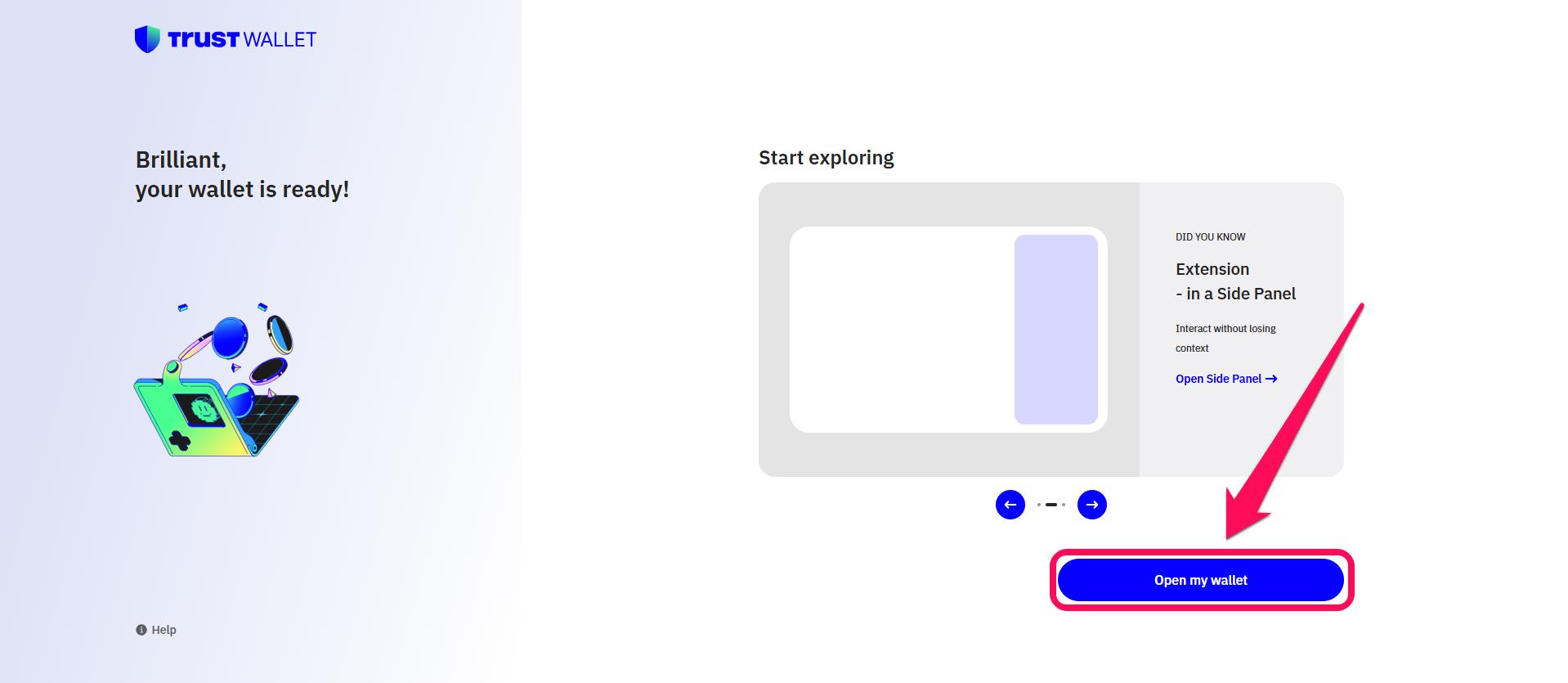
Step 9: Finally, click on Open my Wallet to access your funds and start using the new password.

Access Your Wallet

Mobile App

It’s even easier to change Trust Wallet password in the mobile app. Follow the steps below to get it done:

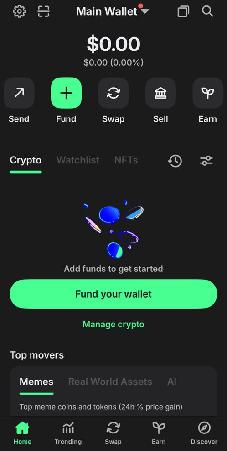
Step 1: Open the Trust Wallet app and log in to your account.

Trust Wallet Mobile App

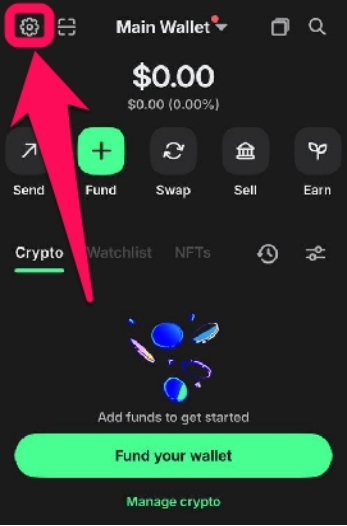
Step 2: Tap the Settings gear in the top left corner.

Trust Wallet Settings

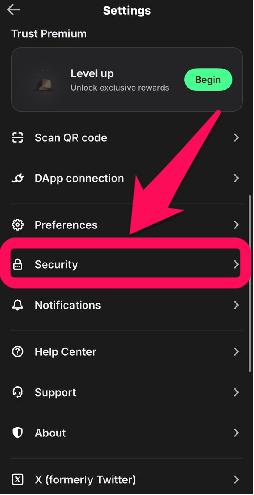
Step 3: Choose Security, then enter your password.

Trust Wallet Security Settings

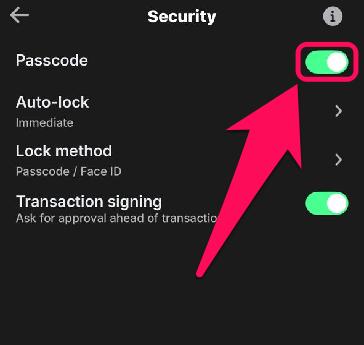
Step 4: Toggle the Passcode switch off to reset your passcode.

Toggle Off Passcode

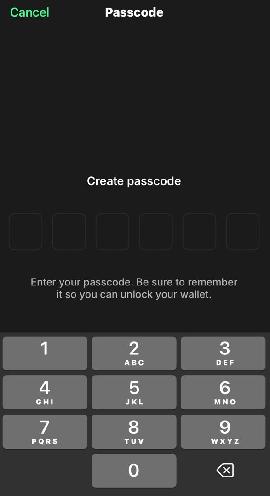
Step 5: Turn it back on to enter a new password. Confirm the new password to save. You can also activate a biometric passkey if prompted to do so.

Create New Passcode

Bottom Line

One of the simplest habits you can build into your routine to add an extra layer of protection to your funds is to change Trust Wallet password regularly. Just make sure your SRP is stored somewhere safe and easily accessible to you, as it’s essential for recovery or reset if you forget your passcode. And if you’re not sure where to find it in the app, our detailed guide on how to find your Secret Recovery Phrase in Trust Wallet walks you through the process step by step.

질문

FAQs

No, password resets do not affect the connected dApps in your wallet. However, you’ll need to reconnect dApps if you reset your wallet via reinstall.

If you forget your passcode, you’ll need to reinstall the app and restore your wallet using the recovery phrase.

If a passkey device is lost, users can still access their Trust Wallet accounts because passkeys are synchronized across the user’s ecosystem, such as Apple iCloud Keychain, Google Password Manager, or via a third-party password manager.

제휴 고지: 이 페이지의 링크를 통해 계정을 개설하면 CryptoWinRate가 수수료를 받을 수 있으며, 이용자에게 추가 비용은 발생하지 않습니다. 이는 점수나 표시된 데이터에 영향을 주지 않습니다. 점수와 데이터는 모두 거래소 데이터베이스를 기반으로 합니다.
작성자

Anthony Ortiz

Author and Editor

Anthony is an author and editor at CryptoWinRate, covering DeFi, staking, bridging and airdrops. He writes and edits practical guides that help readers understand crypto platforms and navigate on-chain tools.

계속 읽기

관련 문서